Uploading Documents to the Library
The Library inside Intellectible is a centralized file storage system within each project where users can upload, manage, and use documents for automated processing. These files serve as inputs for workflows, allowing the platform to process and extract data from large documents automatically. Your project library will often be one of or the main source of data for your workflows and implementations. Therefore uploading a quality project library is often the first stage of starting a new project.
When a document is uploaded into Intellectible a series of processes take place that allow you to use your source material within the platform.
As first step we parse the text from the document and convert it into markdown. Intellectible is equipped with state of the art parsing engines that allow you upload PDF, DOCX, CSV, text, and webpages into Intellectible.
Once parsed we intelligently split the document text into smaller chunks, making a best effort to retain meaning and structure. Each chunk of text then goes through a complex indexing process, this allows your content to be searchable within workflows and agents.
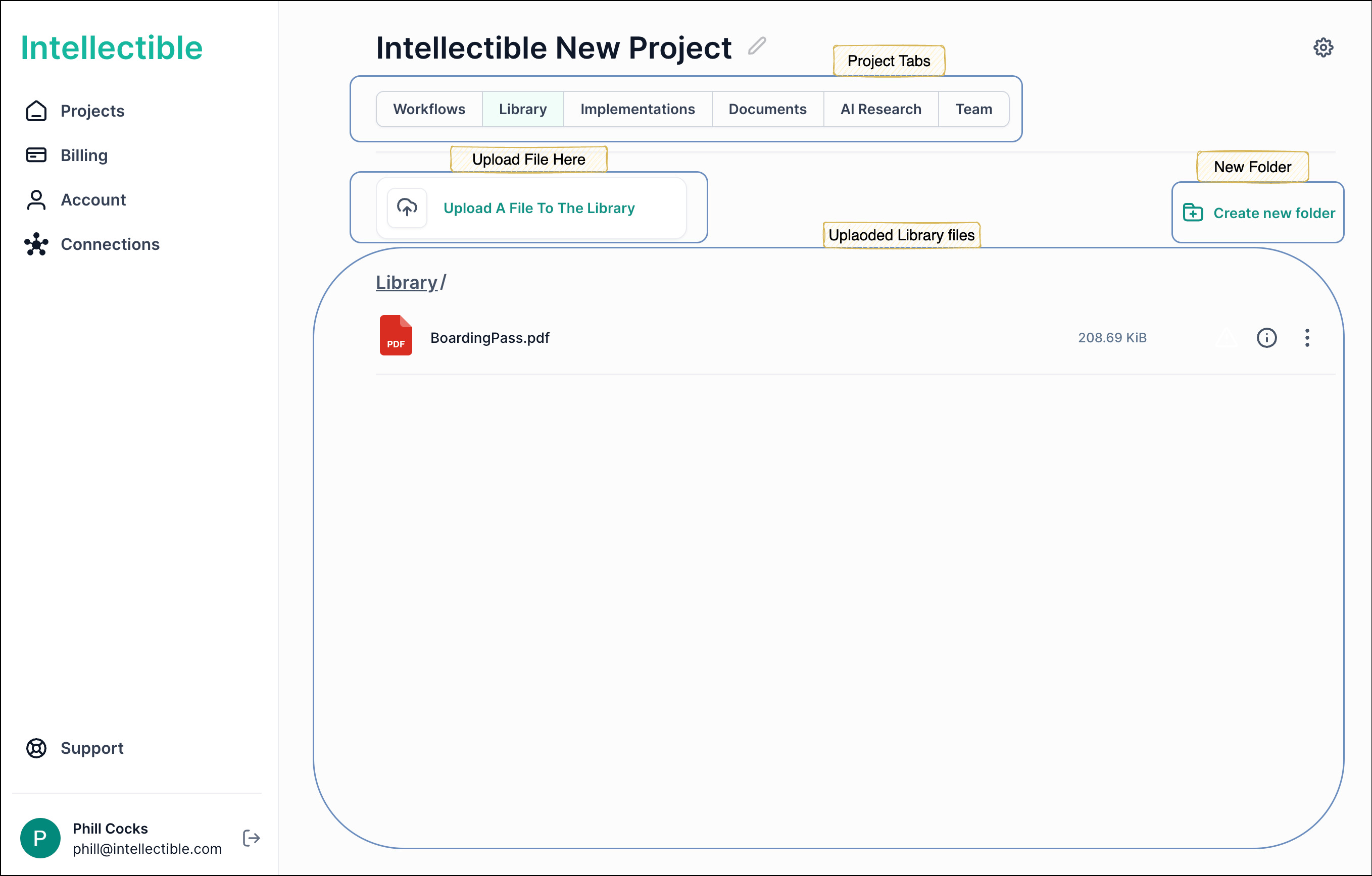
Key Library Features:
- Upload and Store Files – Supports PDF, DOCX, TXT, and CSV formats up to 25MB.
- Organize Files – Files can be grouped into folders for better management.
- Reference Files in Workflows – Workflows can extract data from stored files dynamically.
How to Use the Library:
- Uploading Files – Click "Upload A File To The Library" to add documents.
- Creating Folders – Use “Create new folder” to organize files by category.
- Reference Files in Workflows – Workflows can extract data from stored files dynamically
For example, if you upload a contract document, a workflow can read and extract key information to generate a structured report. This feature ensures efficient document management and seamless integration with automated workflows.
Practical Use Cases of the Library
1. Automated Grant Proposal Analysis
- Upload a grant proposal document to the Library.
- Use a workflow to extract key funding criteria.
- Generate a summary report in the Documents section.
2. AI-Powered Contract Review
- Store legal contracts in the Library.
- Use an AI-driven workflow to highlight important clauses.
- Export the structured findings into a readable report.
3. Data Extraction from CSV Files
- Upload a spreadsheet containing structured data.
- Use workflows to process and extract key insights.
Accessing Library Files from Code Nodes
Code nodes do not talk to the library directly. Instead, fetch the file content with library and I/O nodes upstream and pass it into the code node's inputs socket:
- Locate files with Find Library Files or List Library Files (or pick a file directly in a read node's panel).
- Read the content with Read File As Text, Read PDF, Read CSV, or Read JSON File.
- Attach the result to the code node's input object — for example with a Set Value node that sets
file_texton the object produced by a Data node — and connect that object to the Code node'sinputs.
Inside the code node the content is then available in inputs.json:
import json

with open('inputs.json') as f:
    inputs = json.load(f)

content = inputs['file_text']   # text produced by Read File As Text
To save generated output back to the library, write it to output.json and connect the code node's result to a Write To Library node.
Learn more:
- Code Nodes Guide - Passing data in and out of code nodes
- Find Library Files, List Library Files, Read File As Text, Write To Library - Node reference
See Also
- Code Nodes Guide - Run custom JavaScript and Python
- Databases Guide - Structured data storage
- Workflows Overview - Understanding workflows